Privacy tools - Two-factor authentication (2FA)
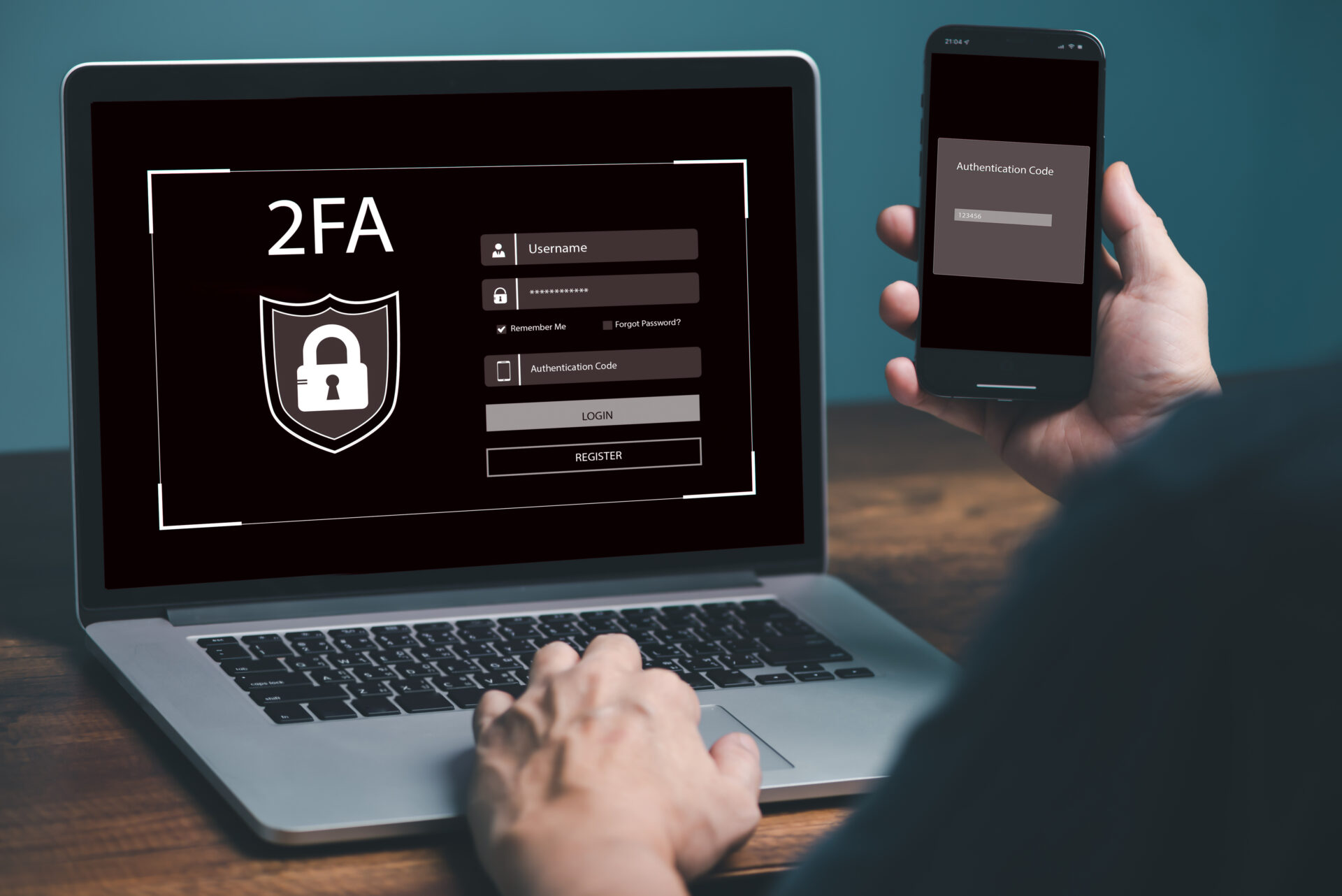
The next step
As I wrote in the article about password managers: accounts and passwords are something we use daily and on average we have 100 to 150 of them. A small part (around 10) of those accounts we use regurlarly and can be considered our most important or 'main' accounts.
In that article I make the case for the necessity of using a password manager. You don't want to use the same password on every account, since once one account is leaked an attacker can gain access to all your accounts.
A unique password for every account is an important step to protect all other accounts when one is leaked.
But can we go further? Can we add more protection, to secure accounts even when leaked?
As you can imagine, the answer to both questions is 'YES'. This is where two-factor authentication, 2FA (or multifactor authentication, MFA) comes in the picture.
Time to take the next step in securing those accounts!
Two-factor authentication or multifactor authentication
As the name suggests, using 2FA or MFA will require you to take multiple steps it is really you when you login to an account.
But what is it really, 'multifactor authentication'? It is a form of authentication that relies on multiple forms of identity verification: something you know, something you have, something you are. In most cases this translates to: a combination of username and password, a code that changes every 30 seconds and is generated by an app on your smartphone (or a separate hardware token) and biometrical data (iris or face scan, fingerprint).
For this article, we will set the limit to two (2) factors. We already have the first, the combination of our username (or email adderss) and password. This is the factor we know. If you are using a password manager (and you should!), this 'knowing' is a bit indirect. You know your 'master passphrase' to get into your vault and you retrieve the necessary data from there.
The second step we will add using TOTP codes (time-base one-time passwords). These codes change frequently, are only valid once and are generated by an application on your smartphone using a shared 'secret'.
Most of the times, this 'secret' will be encoded in a QR code when activating 2FA on your account. You will use the app on your smartphone to scan this QR code. When scanned, both the website and the app know the 'secret' and they both know what the correct code should be at any point in time. Since these codes are time-based, it is important that the clock on your smartphone synchonized and set correctly.
This is our second factor, the factor we have, in the form of our smartphone with a configured app.
What is a good TOTP app?
Just like in the article about password managers we will be looking for an application that is Open Source. This is software that has the code available for anyone to see. This does not mean that we will start reading that code to see what happens. It does mean, however, that security researchers and enthousiasts can check the code. It requires the developers of the software to be honest, if they state something on their website that doesn't match the code, it is easy to find out.
Aside from Open Source software, we will prefer applications that are fully 'standalone' and are not depending on any logins (or phone numbers). It would be very clumsy if the login where to leak and someone would get access to all your 2FA codes. And it would be a hassle to secure the login to get into your 2FA app with 2FA. Unless you would be using yet another app, but wouldn't we have the same problem once more?
Preferably 'offline' it is. This requires you to take a bit more responsibility and I understand that this not the preference of some people.
The app for which I have made a little video (just like I did for Bitwarden in the article about password managers) is '2FAS Auth'. In the video you will see it is called just '2FAS'. That is because the video was made a little while ago. But it will still be helpful to get you started. The second video is a bonus. It shows you how to secure your Bitwarden account with 2FAS.
The videos are made for Android, but judging from their website, 2FAS offers the same user experience on iOS.
When clicking through their website and their app, you will notice the 'Cloud sync' feature. This feature does not make use of a proprietary synchronization, but rather it uses the builtin sync of the device: Google Drive on Android and iCloud on iOS. The data is encrypted before it is saved. This makes it easier to have your 2FA codes on multiple devices. For people not using Google Services (way to go! I know it wasn't easy to get here 😉), there is an option to export and import a backup. It's up to you to decide how you will get the file to another device.
Other options (warning: not for beginners)
To be more complete, I would like to explore some other options for your TOTP codes.
A lot of password managers offer the option to store TOTP secrets and, using those, can generate TOTP codes. Using 'auto copy' functionalities, these codes are available to paste right after 'auto filling' the username and password combination. This makes it very convenient to login to your accounts, using only your password manager. While being very convenient, I would like to point out some things to think about when considering this approach.
Using your password manager to also store your TOTP codes means that you will put all your trust in your 'master passphrase' for all factors of your authentication. Especially when using an online password manager, there are risks involved. Once your 'master passphrase' is obtained by an attacker, he will be able to login to your most valuable accounts, despite the added protection of 2FA. You could, off course, use a separate 2FA app to get into your password manager, but all your precious login information remains in a single place.
Both password managers (Bitwarden and KeePassXC) discussed in the article about password managers support storing TOTP secrets and generating TOTP codes.
This provides us with some options to be creative and to setup several combinations. You can use different vaults for different purposes: a vault for your logins, a vault for 2FA codes...
You could also combine different password managers (and different vaults) for different purposes.
... Be creative 😉
When you are using a separate vault for your 2FA codes, those codes are a bit more 'hidden'. An attacker will not be able to easily locate an obvious 2FA app.
What about SMS?
A lot of websites will ask you for your phone number when registering for an account. Aside from the additional data collection, your phone number can also be used for two-factor authentication.
It does provide a second factor for everyone with a mobile phone (yes, just 'mobile phone' not smartphone). During the login process, you will recieve a text message with a one-time code. This code is used to complete the login process.
As with everything, there are pros and cons with this form of two-factor authentication. But they mostly have to do with how secure you want your two-factor authentication.
The most important con: 2FA using SMS is vulnerable to 'SIM swapping' attacks, attacks that are in nature less technical. When performing a SIM swap attack, the attacker will try to transfer your mobile phone number to a SIM card under his control. To succeed, the attacker will try to convince an employee of your network provider to do the tranfer. (This is also the reason why you don't want your 2FA app to depend on your phone number.)
The most important pro: text messages are a very simple form of 2FA to set up and are much better than no 2FA at all.
My advice would be: aim to get 2FA in place with more secure TOTP codes, but while transforming your 'operational security' 2FA using SMS text messages is a good option to enhance the security of your accounts. Better some extra security than none.
How do we continue?
As described in the article about password managers now is the time to start applying the knowledge obtained in this article.
I don't recommend to start going over every account you have and enable 2FA. This is an unpleasant chore that requires a lot of patience (and time!).
Instead, I would encourage you to start with your most important accounts. Log in to the account, find your account settings and set up 2FA.
In the future, every time you login to an account that is not yet secured with 2FA, repeat the same steps: find your account settings and set up 2FA.
This way you're spreading the time and effort and eventually all your accounts are becoming more secure.
Good luck!